

Generic SAML 2.0 lets an administrator configure Cerberus as a SAML service provider using values supplied by a SAML 2.0 IdP. It provides browser-based SSO to the Cerberus Web Client (available in Enterprise and Enterprise+ editions). The Generic profile is configured manually; it is not an OIDC integration and does not automatically import IdP metadata.
Generic SAML is configuration-driven; it is not a compatibility guarantee for every IdP product or version. Keycloak and JumpCloud have been interoperability validation targets.
SAML is an Enterprise feature. Enterprise Plus and Enterprise DR variants retain the Enterprise feature set. The Beta switch is an additional gate; it does not grant a SAML license. Entra ID and Okta configurations are unaffected by the Generic SAML Beta switch.
This article covers SAML sign-in and optional SCIM 2.0 provisioning capability. SCIM is configured separately in the SSO profile’s 'Provisioning' section. A successful SAML login does not by itself verify SCIM provisioning with the IdP.
Before configuring
Have the following available:
- A Cerberus build that contains the Generic SAML 2.0 Beta feature. 2026.4 can be configured to use this feature as a BETA.
- An Enterprise-class SAML license and an administrator account for the Cerberus web administration interface.
- Administrative access to the IdP's SAML application.
- A Cerberus HTTPS listener reachable by the user's browser and the IdP.
- The intended SP Entity ID, public Assertion Consumer Service (ACS) URL, IdP issuer, IdP SSO URL, and current IdP signing certificate.
- The username claim or stable Subject NameID that Cerberus will use, and the intended Cerberus group and directory permissions.
Keep the Cerberus server and IdP clocks synchronized. Cerberus validates SAML assertion time conditions.
Configuration procedure
1. Enable the existing Beta switch
In the Cerberus web administration interface, open Server Manager → Advanced.
Under Beta Features, turn on Enable BETA Features.
Click Update to save.
Return to the SSO configuration page and refresh it if needed.
This is the existing global Beta switch; no new license or product-code switch is required. When it is off, Generic SAML is hidden from the New SSO choices and the server rejects attempts to create or update a Generic SAML configuration.
2. Add a Generic SAML profile
Open the SSO configuration page and click New SSO.
Select Generic SAML 2.0.
Enter a recognizable Display Name. This label identifies the profile in the admin console and on the Web Client login page.
Keep Enable SSO Authentication selected when users should be able to use this profile.
3. Set the Cerberus service-provider values
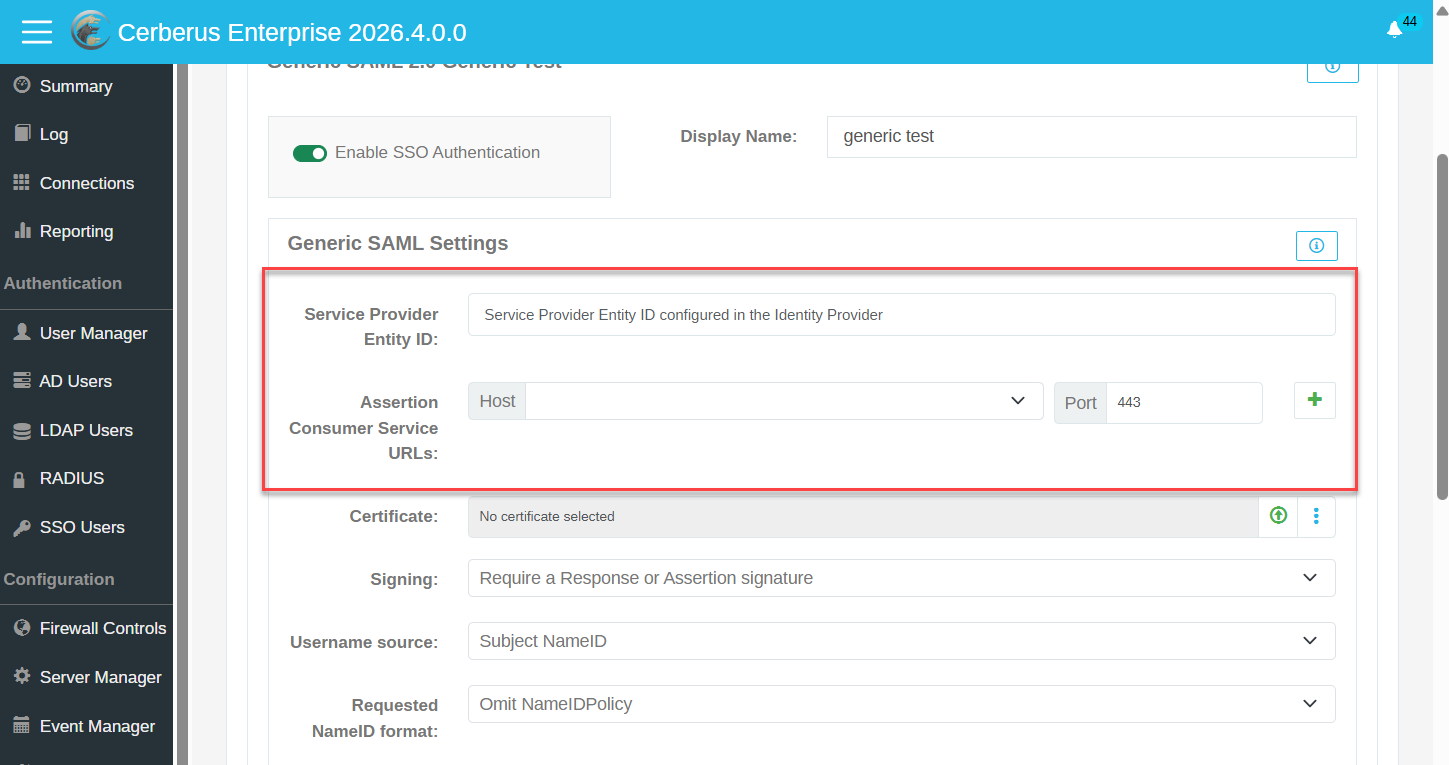
In Generic SAML Settings, configure:
- Service Provider Entity ID: Choose a stable, unique identifier for this Cerberus SAML application. Enter the exact same value in the IdP application as its SP Entity ID or Audience URI.
- Assertion Consumer Service URLs: Add the externally reachable Cerberus HTTPS URL(s) that the IdP will post its SAML response to. Each URL must use HTTPS and end in /saml/acs. The hostname and port must correspond to a Cerberus HTTPS listener. Copy the exact URL into the IdP application.
Use the hostname and port customers actually open in their browser. A URL configured for one hostname or port will not match a different address, even if both reach the same server.
4. Configure the IdP application
In the IdP, create or edit its SAML 2.0 application using the SP Entity ID and ACS URL from Cerberus. Configure the IdP to send the intended stable username (Subject NameID or a SAML attribute), and any user or group attributes required by the Cerberus mapping. The IdP must post its SAML response to the configured ACS URL.
Record the IdP's Issuer and Single Sign-On URL, and download its current public signing certificate. Return to Cerberus to enter these IdP values.
5. Enter the IdP details and match signing settings
In Cerberus Identity Provider Details, set:
- Single Sign-On URL: The IdP's browser login endpoint.
Identity Provider Issuer: The exact issuer value included in the SAML response. It does not have to be an HTTPS URL.
- Certificate: Upload the IdP's current X.509 signing certificate. This is the public certificate, not a private key.
- Signing: Match the IdP's signing behavior. The options are as follows:
| Require SAML Response signature when the response is signed. |
| Require SAML Assertion signature when the assertion is signed. |
| Require both Response and Assertion signatures when both are signed and should be required. |
| Require a Response or Assertion signature when the IdP signs one or the other. |
The certificate and selected signing requirement must match what the IdP actually sends. Update the Cerberus certificate when the IdP signing certificate changes, then test sign-in again.
The Generic profile's Logout URL is optional and should normally be left blank. Cerberus ends its local web session but does not send a SAML logout request to the IdP.
6. Map the username and attributes
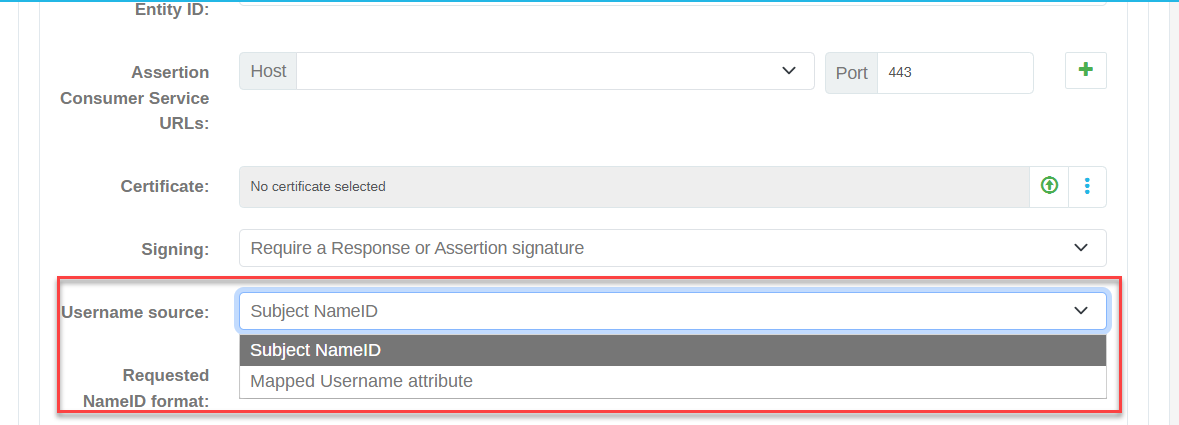
- Username source — Subject NameID: Use this when the assertion's Subject NameID is a stable, unique Cerberus username. Do not use a transient NameID; Cerberus cannot use it as an account name.
- Username source — Mapped Username attribute: Use this when the IdP sends the username in an assertion attribute. Map Cerberus Login Name to the exact attribute name sent by the IdP.
- Requested NameID format: Select the format required by the IdP. Choose Omit NameIDPolicy when the IdP should choose the format.
- Attribute Statements: Map any required first name, last name, email, telephone, or mobile-phone attributes using the exact attribute names in the assertion. Generic SAML does not supply provider-specific defaults for these mappings.
- Group Membership: Add the assertion attribute that contains group membership and choose whether its values are Group IDs or Display Names, matching the IdP's values.
- Default Mapping Configuration: Select the Cerberus default group and virtual-directory mapping that should apply. Review the resulting permissions before enabling access.
Save the SSO configuration after both Cerberus and the IdP contain matching values.
7. Test sign-in
- Open the Cerberus Web Client login page using the exact HTTPS hostname and port configured in the ACS URL.
- Select the SSO button matching the configured Display Name.
- Complete authentication at the IdP and confirm the browser returns to the Cerberus Web Client.
- Verify the expected username, group membership, virtual directories, and file permissions.
Start the flow from the Cerberus login page. Generic SAML requires a Cerberus-initiated request correlated to the IdP response; IdP-initiated sign-in is not supported by this flow.
FAQ & Troubleshooting
Generic SAML 2.0 is missing from New SSO
Check that the installed build includes Generic SAML 2.0, Enable BETA Features is on and saved, and the customer has an Enterprise-class SAML license. The switch does not grant a license. Entra ID and Okta remain available independently of this switch.
The SSO button is missing from the Web Client login page
Confirm that Enable SSO Authentication is selected and that the login page's hostname and port match one of the profile's configured ACS URLs. Use the same HTTPS address that is registered in the IdP application.
The IdP returns to Cerberus, but authentication fails
Compare the values exactly on both sides:
- Cerberus Service Provider Entity ID versus the IdP's SP Entity ID/Audience URI.
- Cerberus Identity Provider Issuer versus the response's Issuer.
- The IdP's ACS/recipient/destination versus the configured Cerberus HTTPS URL ending in /saml/acs.
- The uploaded IdP signing certificate and Cerberus Signing requirement versus the response/assertion that the IdP signs.
Also check server and IdP time synchronization if the assertion is rejected as not yet valid or expired.
Authentication succeeds, but the username is blank or wrong
Confirm the selected Username source. For Mapped Username attribute, map Login Name to the exact attribute name the IdP sends. For Subject NameID, confirm the IdP sends a stable, non-transient NameID and that the requested format is compatible with the IdP.
Authentication succeeds, but the user has the wrong groups or file access
Check the assertion's group-membership attribute, whether values are IDs or display names, the Cerberus group mappings, and the default group/virtual-directory mapping. SAML authentication and authorization mapping are separate checks.
Logging out of Cerberus leaves the user signed in at the IdP
This is expected. Generic SAML does not implement SAML Single Logout. Cerberus ends its local Web Client session; the IdP's browser session remains active. The optional Generic Logout URL does not enable IdP logout.
Can the IdP launch the sign-in directly?
No. Start from the Cerberus Web Client login page and select the SSO button. The response must correspond to a Cerberus-initiated sign-in request.
Does this configuration enable SCIM provisioning?
Yes. Cerberus supports SCIM 2.0 provisioning, and Generic SAML profiles can enable it in the Provisioning section. Turn on Enable Provisioning, configure the Tenant URL and Secret Token, and configure the IdP’s SCIM client with those values.
Test user and group create, update, deactivate, and delete operations separately. SCIM compatibility can vary by IdP and version; a successful SAML login does not validate SCIM provisioning.
Comments
0 comments
Article is closed for comments.